
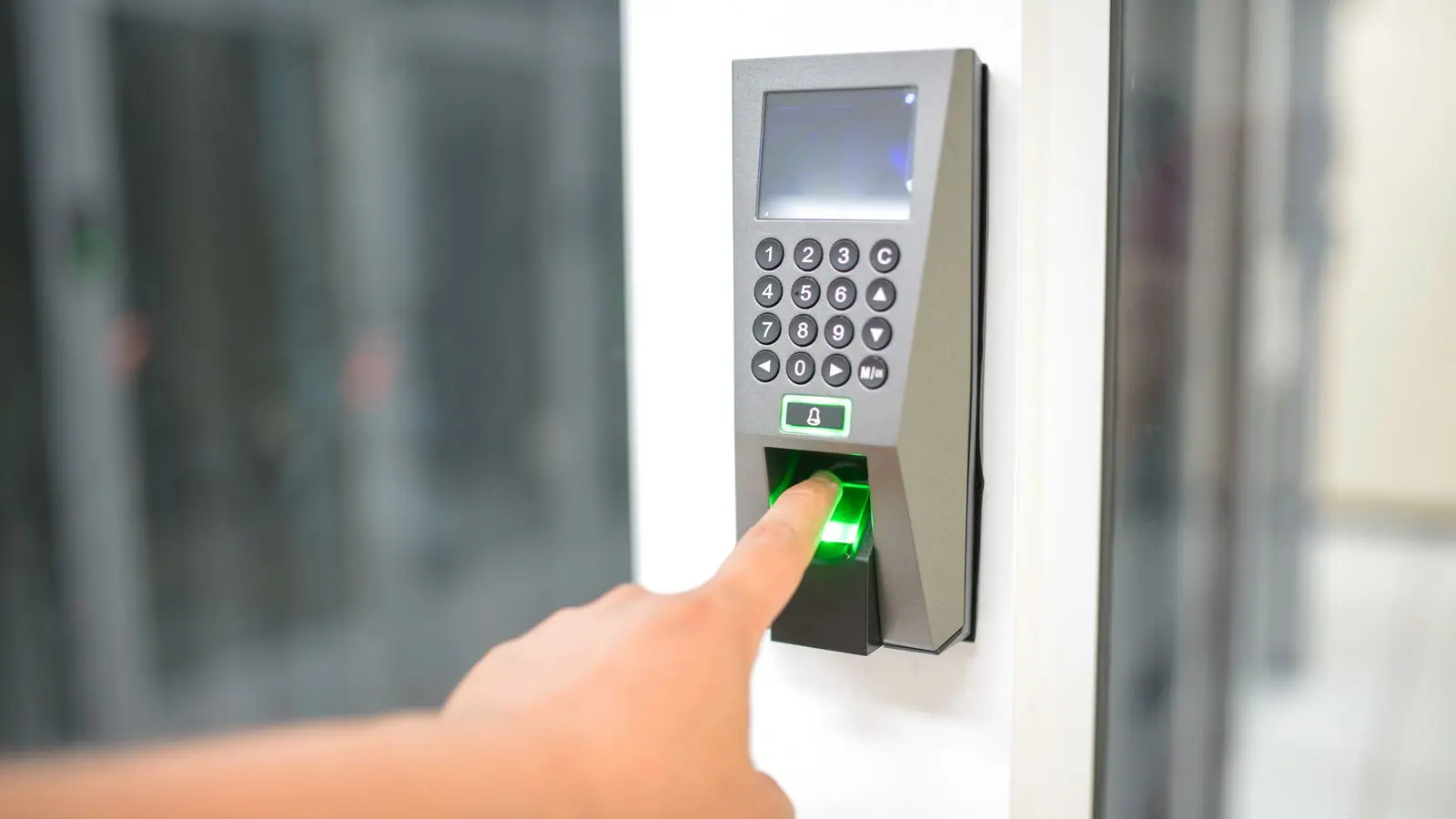
Attendance in XEN is not punched by hand on the web: it comes from the biometric clocks the organization registers in Human Resources. This walkthrough leaves a clock connected and the day's attendance visible on the dashboard.
1. Register the device
In Human Resources, open Devices and click Register device. Enter the brand and model, the device's network address and the site where it is installed. XEN works with clocks from several brands; if yours uses a protocol of its own, XEN Overdrive builds the integration.
2. Enroll the people
In the device's Users tab, link each collaborator of the organization to their identifier on the clock. This is what lets a fingerprint become a person's name and not a number.
3. Sync
Click Sync. XEN reads the new punches from the device and stores them with person, date, time and device. In the Attendance tab you see each punch exactly as the clock recorded it; if the device was offline, it hands over its full queue on reconnection.
4. Look at today's attendance
Go back to the Human Resources Dashboard. Under Attendance, Today shows who has already punched in, who arrived late according to their shift and who is missing. The day's observations are resolved from there, with the justification recorded under the name of whoever approves it.
What to ask before buying a clock and how the hours reach payroll is explained on the blog. Read about frictionless biometric attendance